GeoIP Database Management
Overview
TapMap requires GeoIP databases to display geographic locations on the map.
On startup, TapMap checks the application data folder for supported GeoIP databases.
If no supported databases are found, GeoIP Database Management opens automatically and guides you through the installation process.
After databases have been installed, GeoIP Database Management can be opened at any time from the Tools menu or by pressing G.
TapMap supports:
- MaxMind GeoLite2 (recommended)
- DB-IP Lite
First-time installation
On startup, TapMap checks for supported GeoIP databases.
If no supported databases are found, GeoIP Database Management opens automatically and guides you through the installation process.
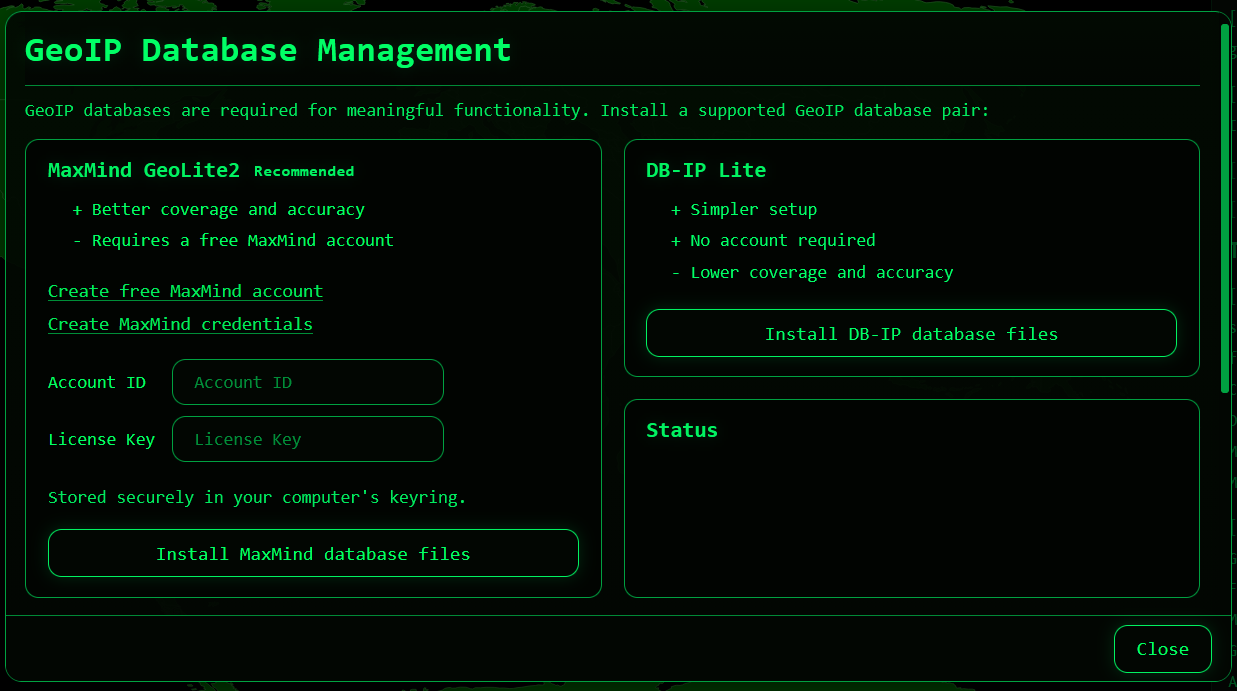
Users can choose between:
- MaxMind GeoLite2
- DB-IP Lite
MaxMind GeoLite2
Recommended provider.
Benefits:
- Better coverage and accuracy
Requirements:
- Free MaxMind account
- Account ID
- License Key
DB-IP Lite
Alternative provider to MaxMind GeoLite2.
Benefits:
- Simpler setup
- No account required
Limitations:
- Lower coverage and accuracy
Manual installation
If you prefer not to install databases through GeoIP Database Management, you can install them manually.
Download the databases
MaxMind GeoLite2
Download:
- GeoLite2 City (GeoIP2 Binary / .mmdb)
- GeoLite2 ASN (GeoIP2 Binary / .mmdb)
https://dev.maxmind.com/geoip/geolite2-free-geolocation-data
Do not download the CSV versions.
MaxMind distributes the databases as compressed archives. Extract the archives before copying the .mmdb files into the database folder.
Required filenames:
GeoLite2-City.mmdb
GeoLite2-ASN.mmdb
DB-IP Lite
Download:
- DB-IP City Lite
- DB-IP ASN Lite
DB-IP distributes the databases as compressed .gz files.
Examples:
dbip-city-lite-2026-06.mmdb.gz
dbip-asn-lite-2026-06.mmdb.gz
Extract the files before copying them to the database folder.
After extraction, rename the files to:
DBIP-City.mmdb
DBIP-ASN.mmdb
Install the databases
- Click Open data folder.
- Copy the database files into the data folder.
- Click Recheck databases.
TapMap detects the databases and updates its database status.
A restart is not normally required.
Opening GeoIP Database Management
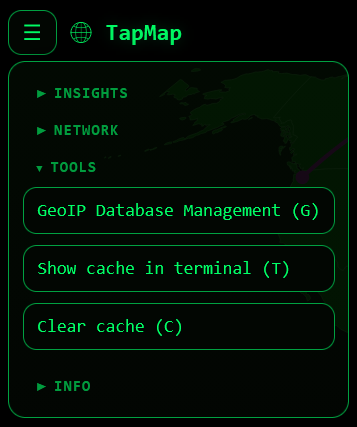
Open GeoIP Database Management from the Tools menu or press G.
GeoIP Database Management can be used to:
- Install databases
- Update databases
- Recheck database status
- Open the database folder
Updating databases
Automatic updates
When databases are installed, GeoIP Database Management can check for newer versions.
- Open GeoIP Database Management.
- Click Update databases.
TapMap checks for newer database versions and installs updates when available.
Manual updates
If you update database files manually, replace the existing files in the database folder with newer versions.
On some systems, database files may be locked while TapMap is running.
If existing database files cannot be replaced:
- Close TapMap.
- Replace the database files.
- Start TapMap again.
If the new databases are not detected immediately, click Recheck databases.
Rechecking databases
Use Recheck databases to:
- Detect manually added database files
- Refresh database status information
Recheck is primarily intended for manual database installation and troubleshooting.
Switching provider
To switch provider:
- Open GeoIP Database Management.
- Click Open data folder.
- Close TapMap.
- Remove the current database files.
- Start TapMap.
If no supported databases are found, GeoIP Database Management opens automatically and displays the installation workflow.
From there you can install either:
- MaxMind GeoLite2
- DB-IP Lite
If you choose MaxMind GeoLite2, you may enter or update your MaxMind credentials before installation.
Credential storage
On desktop installations, MaxMind credentials are stored securely in the operating system keyring.
In Docker, credentials are stored in the Docker data directory for future updates.
Credentials are not stored in TapMap configuration files.
The installation workflow is the recommended way to create or update credentials.
Desktop installations use:
Service: tapmap_geolite2

Username: account_id
Username: license_key
Docker
When running in Docker, the database folder is mapped from the host to /data inside the container.
See Environment Variables for Docker-specific configuration options.
Troubleshooting
Missing geolocation
If services appear under Unmapped public services (missing geolocation), open GeoIP Database Management and verify that a GeoIP provider is installed and detected.
If no databases are installed, follow the installation workflow.
Databases not detected
Click Recheck databases.
If database files were copied manually while TapMap was running, click Recheck databases.
If database files were copied manually while TapMap was not running, restart TapMap.
Installation or update failed
Verify that:
- Internet access is available.
- MaxMind credentials are valid (MaxMind only).
- The database folder is writable.
Review the status message shown in GeoIP Database Management for additional details.
Limitations
Locations are based on IP geolocation data and are approximate. TapMap uses the coordinates returned by the installed GeoIP database for the remote IP address and does not independently determine or verify the physical location of the network endpoint.
For some network infrastructure, including anycast services, CDNs, proxies, and VPNs, the displayed location may therefore differ from the physical location of the endpoint handling the connection.