
TapMap




Featured in: How-To Geek • MakeUseOf • kode24 • AI Heartland
Watch your computer connect across the internet in real time. Discover the world behind your apps.
Runs locally. No telemetry. Docker supported on Linux.
TapMap inspects local socket data, enriches IP addresses with geolocation, and visualizes the locations on an interactive map.
It also builds a local activity history to provide insights and identify patterns in network activity over time.
It is an awareness tool, not a firewall or a full security suite. It makes network activity visible and easy to explore.
Quick start
Desktop
Choose an installation method for your platform.
Windows
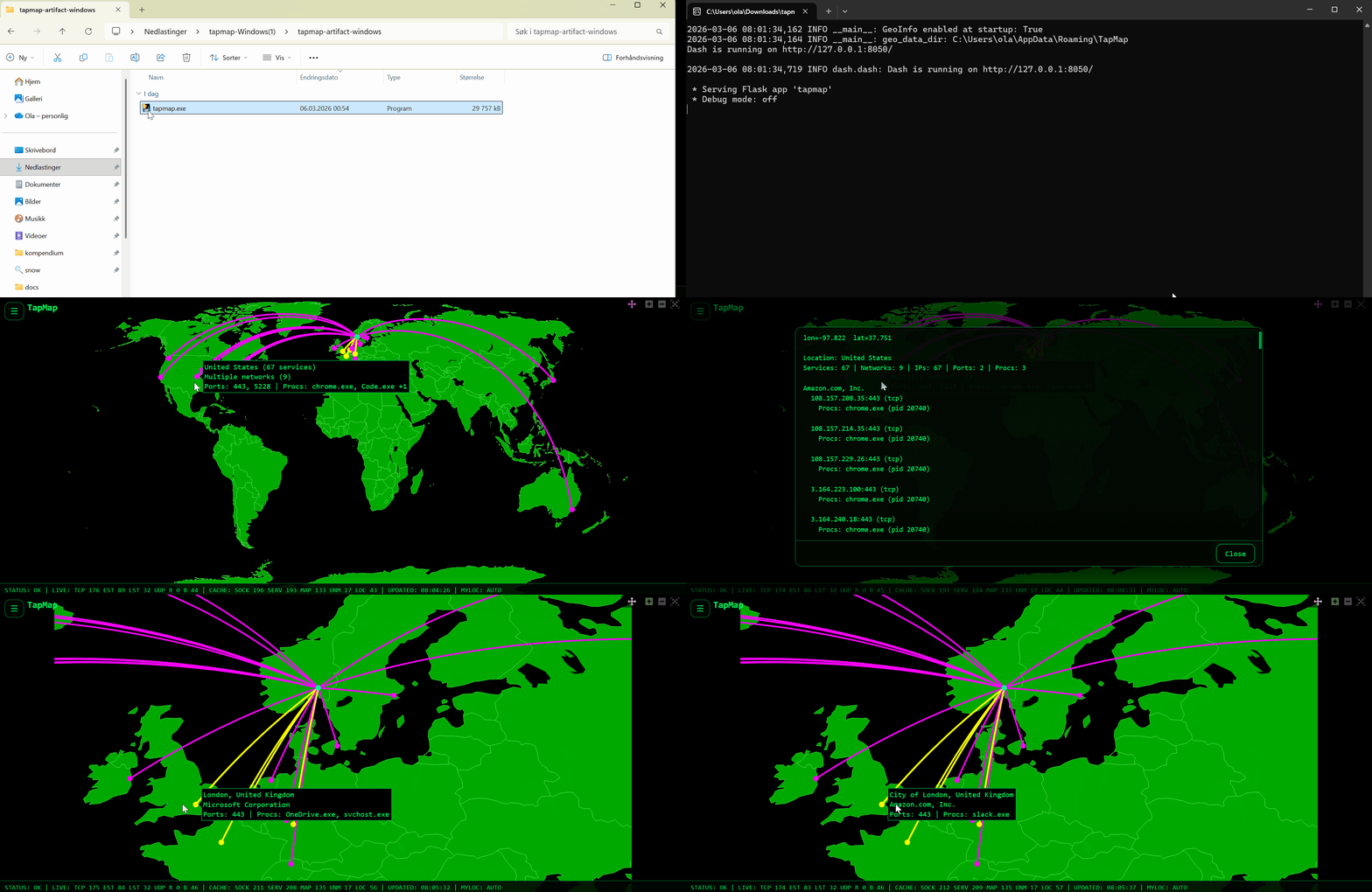
Download and run the Windows installer from the Releases page.
Windows may show a SmartScreen warning the first time you open the installer. See Windows SmartScreen.
macOS
Install with Homebrew:
brew install --cask tapmap
Alternatively, download the appropriate .dmg image from the Releases page, open it, and drag TapMap to Applications.
Linux
Download and install the .deb package from the Releases page.
Docker (Linux host only)
docker run --rm \
--network host \
--pid host \
-v ~/tapmap-data:/data \
-e TAPMAP_IN_DOCKER=1 \
olalie/tapmap:latest
For Docker configuration, updates, process visibility, and Docker Compose usage, see Docker.
Why TapMap
Your computer connects to many systems without you noticing.
TapMap makes this visible so you can:
- See where connections go
- Notice when something new appears
- Understand what is normal over time
- Explore connections with hover and click
What TapMap shows
- Services your computer connects to
- Their approximate locations on a world map
- Application information for each network operator
- Operating system verification status for applications
- Nearby locations highlighted when multiple connections overlap
- Insights panel showing new and frequent activity over time
- Significant Connections history of new applications, countries, network operators, ports, and failed verification
- Desktop and MQTT notifications for new Significant Connections
- Daily Activity Report with application patterns, provider analysis, and activity timelines
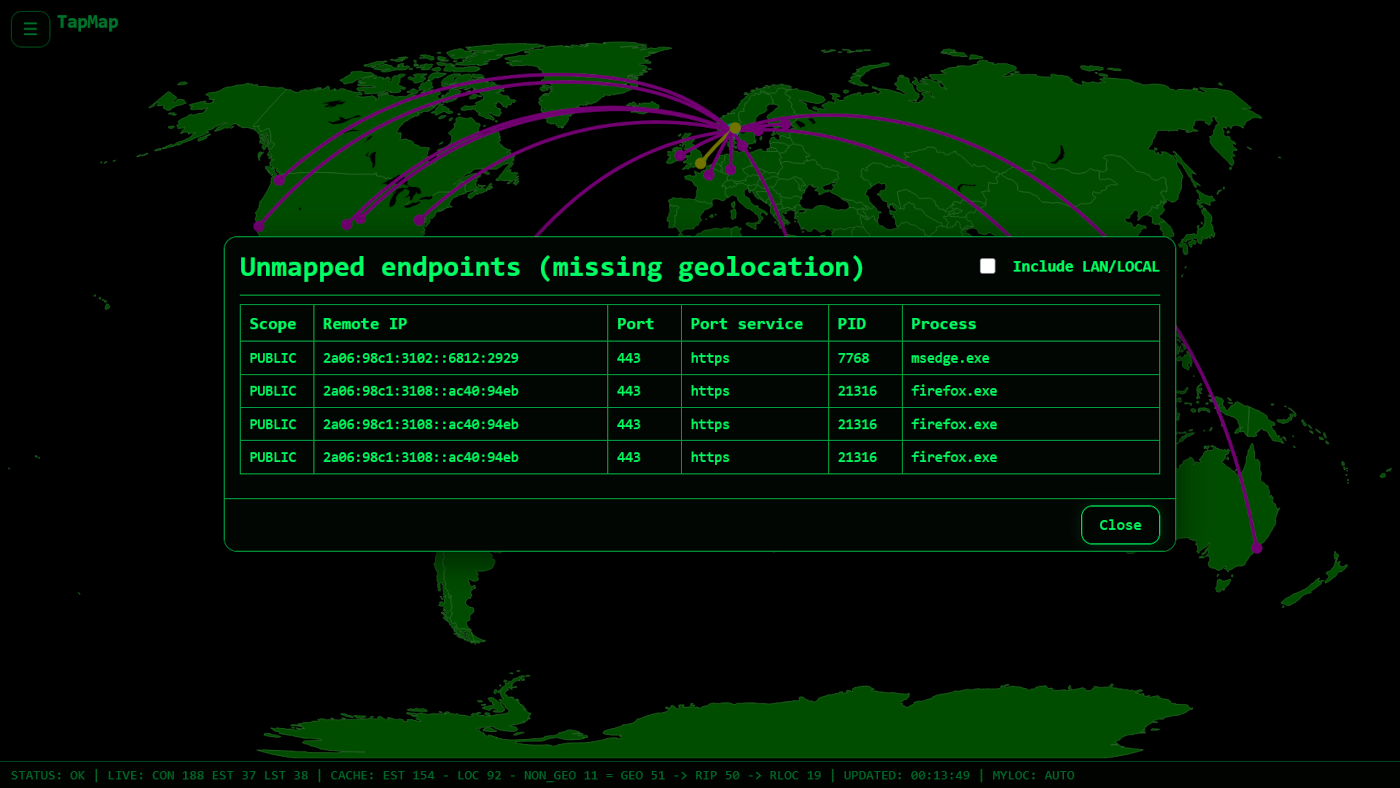
- Unmapped public services with missing geolocation
- Established LAN and LOCAL services
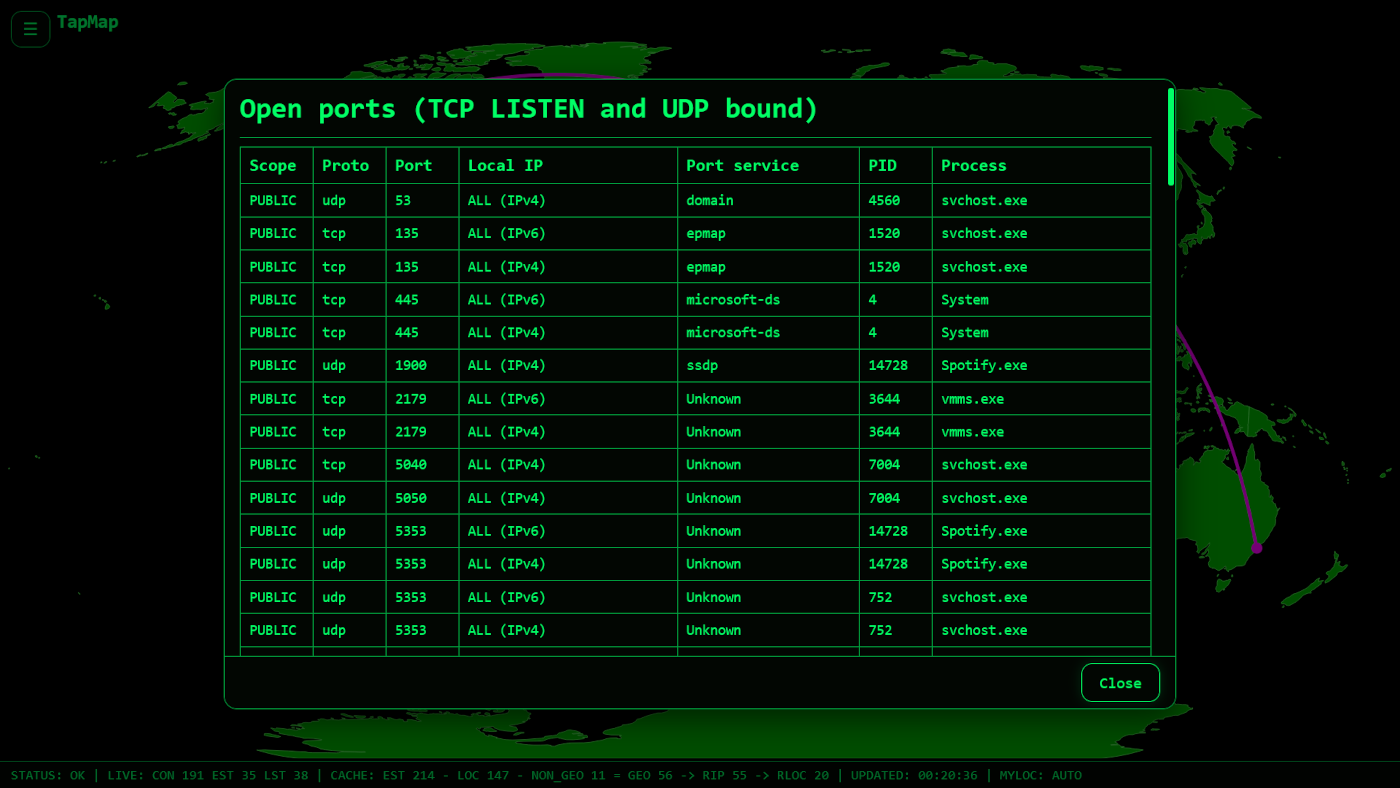
- Local open ports (TCP LISTEN and UDP bound)
All data is collected locally on your machine.
How to use
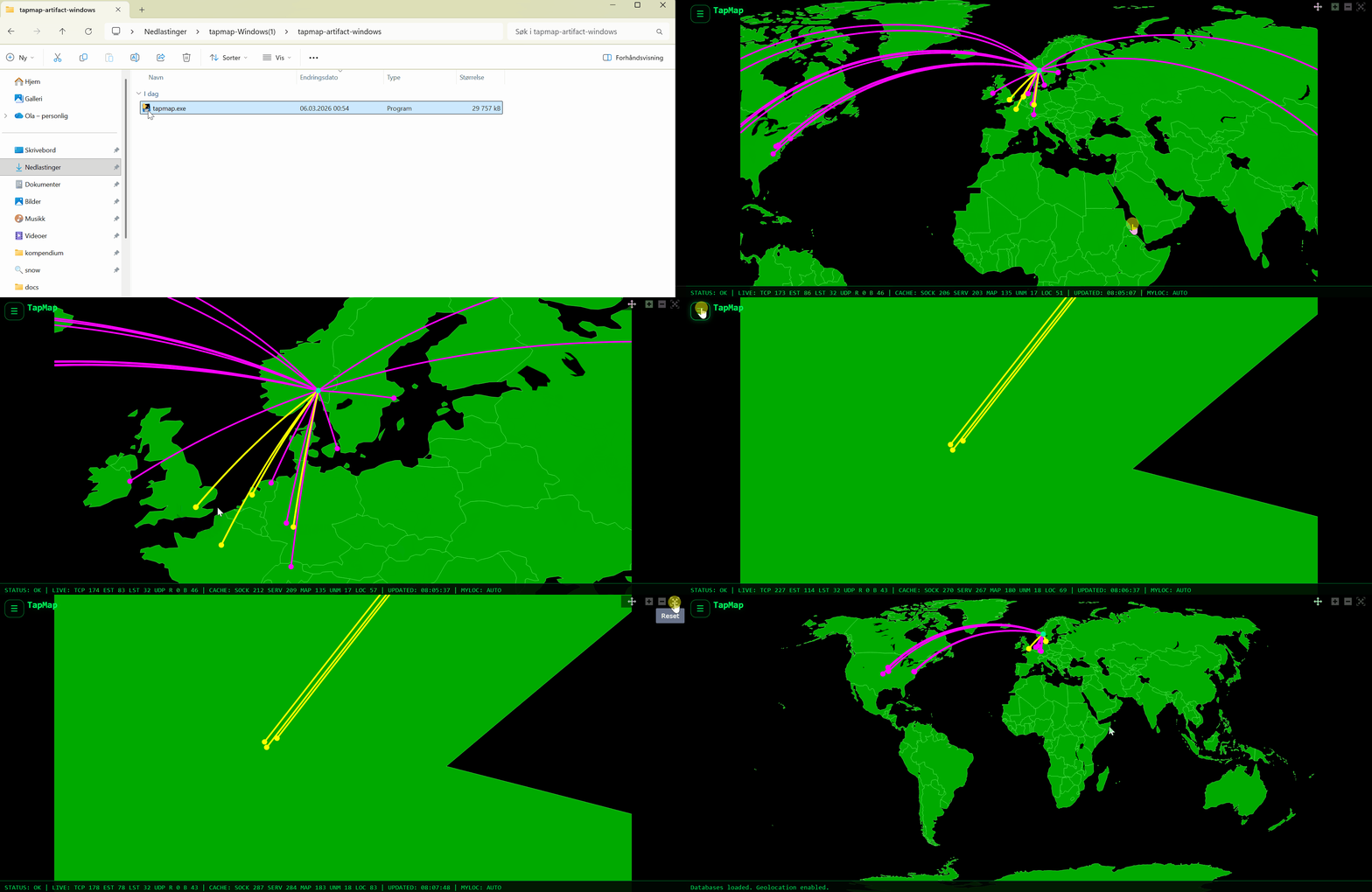
- Hover map markers to see applications using the selected network operator
- Click map markers for detailed application information
- Enable Technical details in the NETWORK menu to display executable paths, processes, PIDs, signatures, and other technical information
- Open the menu in the upper-left corner to access Insights and network tools
- Open the Daily Activity Report with D
- Open Significant Connections with S
- Click countries in Insights to zoom to a country
Insights and Daily Activity Report
TapMap builds a rolling 30-day history of network activity and helps you understand what is normal, new, recurring, or unusual.
The Insights panel highlights:
- New apps, providers (ASN), countries, and ports
- Frequent activity (Top 5+, including ties)
- Click countries to zoom and inspect on the map
The Daily Activity Report provides a broader summary of recent activity:
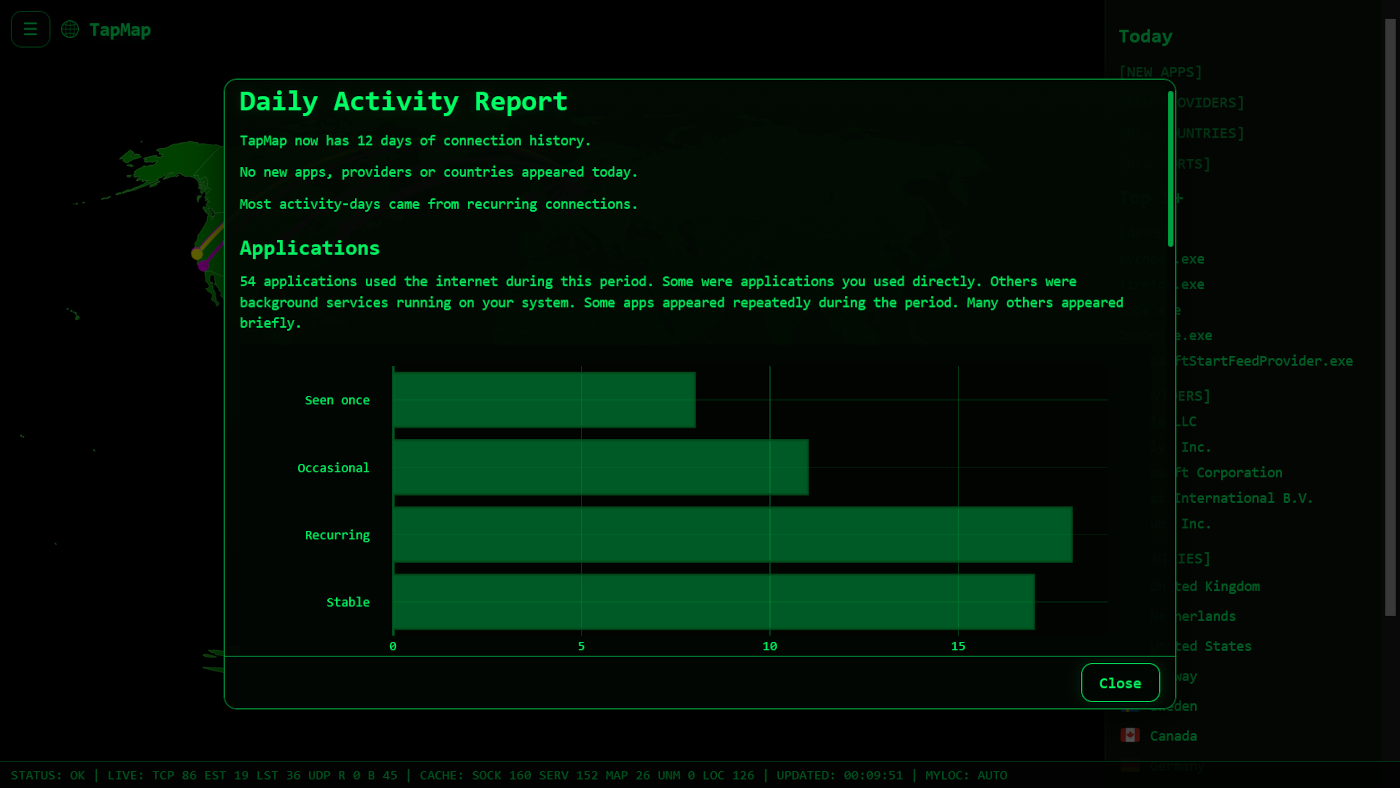
- Application recurrence patterns (seen once, occasional, recurring, and stable)
- Provider concentration analysis
- Country activity visualization
- Generated activity logs with detailed timelines
The map shows connections observed since TapMap started or the cache was last cleared, while Insights and the Daily Activity Report use historical activity collected during the last 30 days.
To build a complete activity history, keep TapMap running while your system is in use. Running it at startup is recommended.
Significant Connections and notifications
Significant Connections records new applications, countries, network operators, remote ports, and failed application verification.
Open Significant Connections from the INSIGHTS menu or press S to view up to 500 recent events.
Desktop notifications are enabled by default on Windows, Linux, and macOS. Use Notifications (N) in the INSIGHTS menu to turn them on or off.
TapMap can publish new Significant Connections to an MQTT broker. Run the configuration wizard to set up the connection:
tapmap --configure-mqtt
See MQTT for details.
How it works
TapMap's live map follows a simple local pipeline:
socket scan → IP extraction → GeoIP lookup → map rendering
It uses:
psutil(Windows and Linux) orlsof(macOS) to read active network connections- Operating system metadata and verification mechanisms to identify and verify applications
- GeoIP databases for IP geolocation
- Dash and Plotly to render an interactive world map
How it runs
TapMap runs locally as a web server and opens your browser:
http://127.0.0.1:8050/
If it does not open automatically, enter the address manually.
TapMap keeps running after you close the browser tab or window. Use the system tray icon (menu bar on macOS) to open or quit TapMap.
Run TapMap automatically starts TapMap at login. It is enabled by default after a fresh installation and can be changed from the TOOLS menu. When started automatically, TapMap runs in the background without opening the browser.
The system tray and autostart are available for desktop installations, not Docker.
TapMap works with the default configuration.
Runtime configuration through environment variables is documented in Environment Variables.
Users running TapMap from source can also adjust settings in config.py.
GeoIP databases
TapMap uses GeoIP databases to display locations on the map.
If no supported databases are found, GeoIP Database Management opens automatically and guides you through database setup.
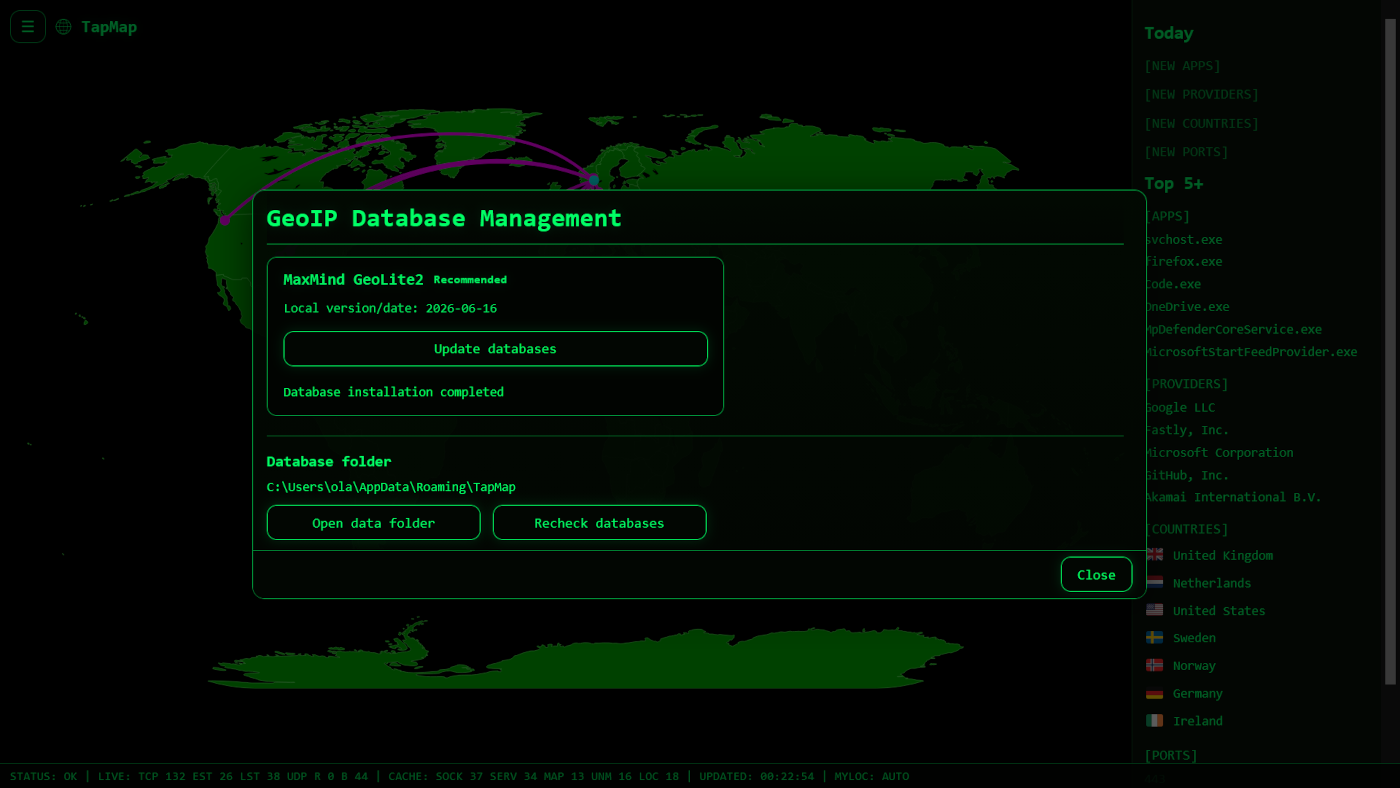
Installation, updates, provider selection, and manual installation are documented in GeoIP Database Management.
Documentation
Additional documentation:
- Application Information
- GeoIP Database Management
- Environment Variables
- Desktop Notifications
- MQTT
- Docker
- Backend Testing
- Privacy Policy
Interface
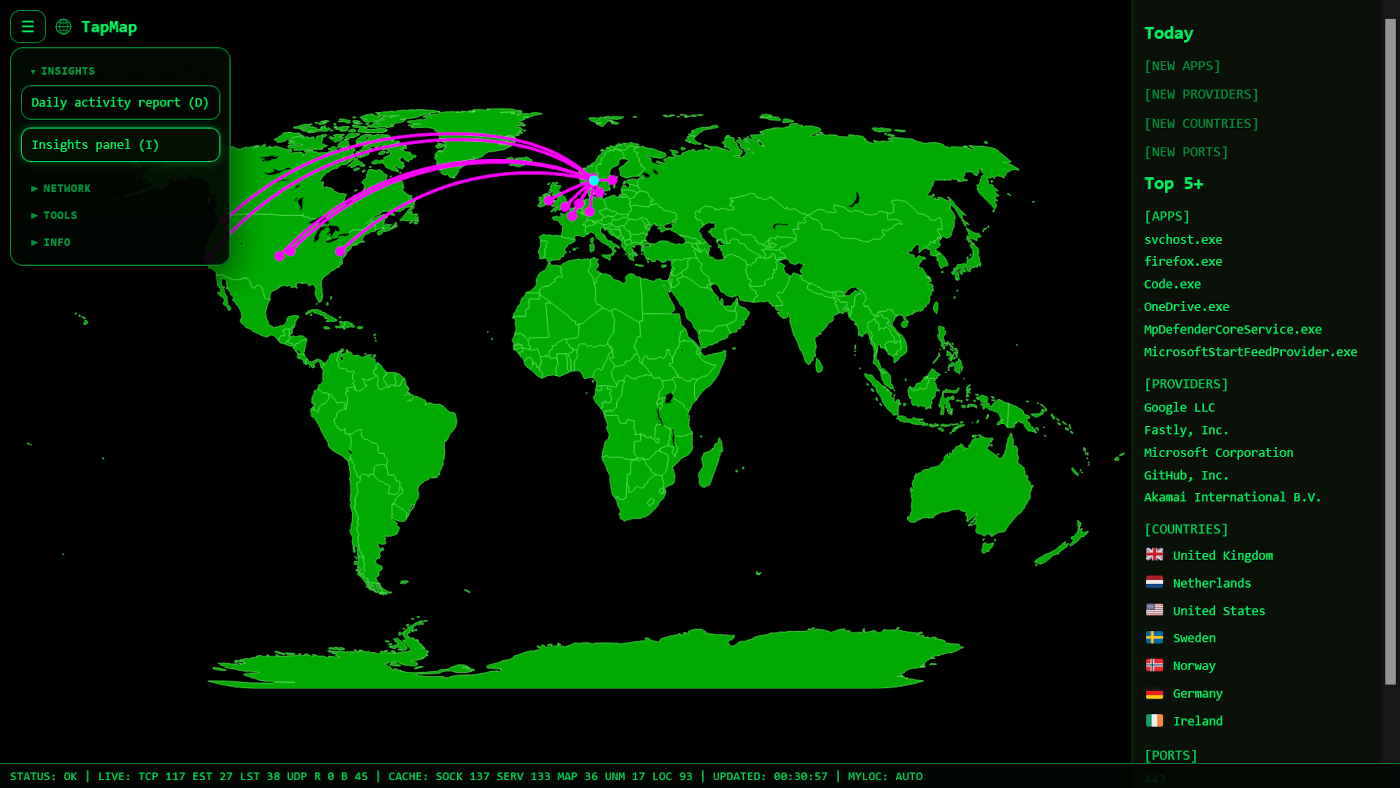
Main view
Interactive world map with live connections, application information, operating system verification status, Insights, and quick access to major features.
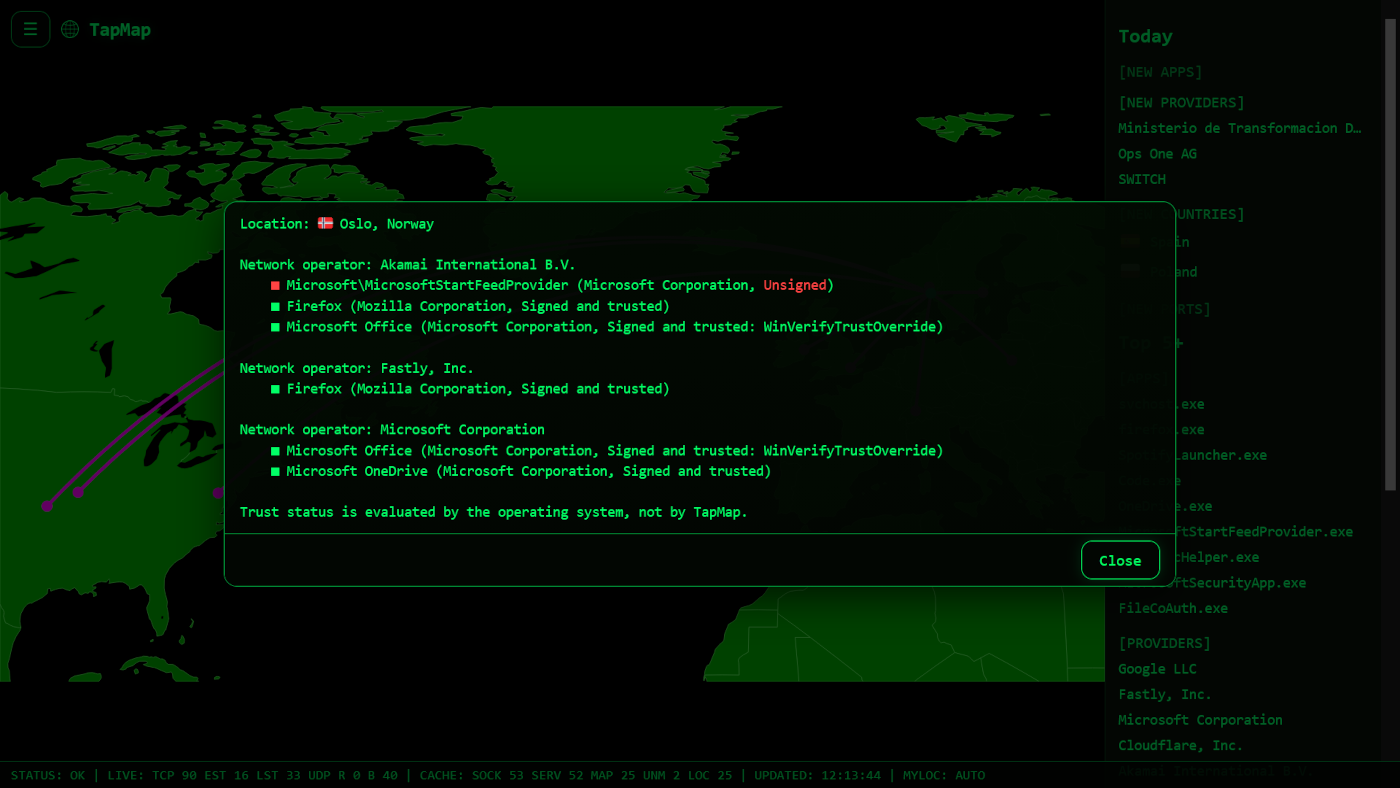
Application information
Hover over map markers to see the applications using each network operator. Click a marker for additional application details or enable Technical details for executable paths, processes, PIDs, signatures, and other technical information.
Daily Activity Report
Historical analysis of applications, providers, countries, and activity patterns observed during the last 30 days.
GeoIP Database Management
Install, update, verify, and manage GeoIP databases used for geolocation.
Open ports
View local TCP listening ports and UDP bound ports, including processes and services.
Unmapped services
Inspect connections that could not be geolocated and therefore do not appear on the map.
Keyboard controls
| Key | Action |
|---|---|
| D | Daily Activity Report |
| I | Toggle Insights panel |
| S | Significant Connections |
| N | Toggle desktop notifications (menu open) |
| U | Unmapped public services |
| L | Established LAN/LOCAL services |
| O | Open ports |
| T | Toggle Technical details |
| G | GeoIP Database Management |
| R | Run TapMap automatically (menu open) |
| E | Export cache |
| C | Clear cache |
| H | Help |
| A | About |
| Z | Fit Connections |
| X | Exit |
| ESC | Close window |
Privacy
TapMap is designed to protect your privacy. It processes network connection data locally, does not send telemetry or analytics, and performs geolocation using local GeoIP databases. If MQTT notifications are configured, Significant Connection data is published to the configured MQTT broker.
For details, see PRIVACY.md.
Platforms and builds
Download the latest version from the Releases page.
Available downloads:
- Windows installer
- Linux (.deb)
- macOS (Apple Silicon)
- macOS (Intel)
Tested on:
- Windows 11
- Ubuntu
- macOS (Apple Silicon)
Community testing has confirmed support on additional platforms and architectures.
Command-line options:
tapmap --help

tapmap --version
tapmap -v

tapmap --no-browser

tapmap --configure-mqtt
Windows SmartScreen
Windows may show a SmartScreen warning the first time you run the TapMap installer.
This can happen until Windows has built enough reputation for the installer.
To continue:
- Click More info.
- Click Run anyway.
Build from source
Requirements:
- Python 3.13+
On Ubuntu/Debian, install the system dependencies required by PyGObject and the system tray:
sudo apt install pkg-config libcairo2-dev libgirepository-2.0-dev gcc python3-dev gir1.2-ayatanaappindicator3-0.1 gir1.2-notify-0.7
Create a virtual environment:
python -m venv .venv
Activate it:
source .venv/bin/activate   (Linux/macOS)
.venv\Scripts\activate      (Windows)
Install dependencies:
pip install -r requirements-tests.txt
pip install -e .
On Linux, also install the system tray dependencies:
pip install -r requirements-linux-desktop.txt
Run:
python -m tapmap
Run tests:
pytest
Build the application:
pip install -r requirements-build.txt
python tools/build.py
The build pipeline runs the test suite, then builds the application for the current operating system with PyInstaller. Output is created in the dist directory.
Project
TapMap is developed by Ola Lie at TIP Teknologi i Praksis AS.
License
MIT License
Acknowledgements
Many thanks to the community members who reported bugs, tested pre-release builds, and suggested improvements.
-
@zero77 for reporting the Debian Forky startup crash and thoroughly testing diagnostic builds, system tray behavior, and the final fix.
-
@sersora0986 for reporting the Dash renderer performance issue and testing diagnostic builds to help identify the cause.
-
@faxotherapy for reporting macOS compatibility issues and testing Intel builds.
-
@nafarinha for confirming architecture support and validating macOS behavior.
-
@totti4ever for reporting Docker multi-arch issues and confirming the fix on arm64.
-
@khadanja for suggesting a Docker-based workaround.
-
@TechnVision for raising the configurable port use case.
- @desrod for suggesting a solution for configurable port support.
-
@hugalafutro for suggesting optional SYS_PTRACE support for process visibility on Linux.
-
@mad-tunes for suggesting optional browser launch control when running TapMap as a service, and configurable cache retention to reduce map clutter on busy systems.
-
@forthrin for detailed first-use feedback and suggestions that improved map navigation and overall usability.