Application Information
Overview
TapMap observes established network connections on your computer and identifies the IP addresses, ports, processes, process IDs (PIDs), and executables involved.
A summary of the applications using a service is shown when you hover over a service point on the map. Click the service point to see the location, network operators, connections, and applications involved.
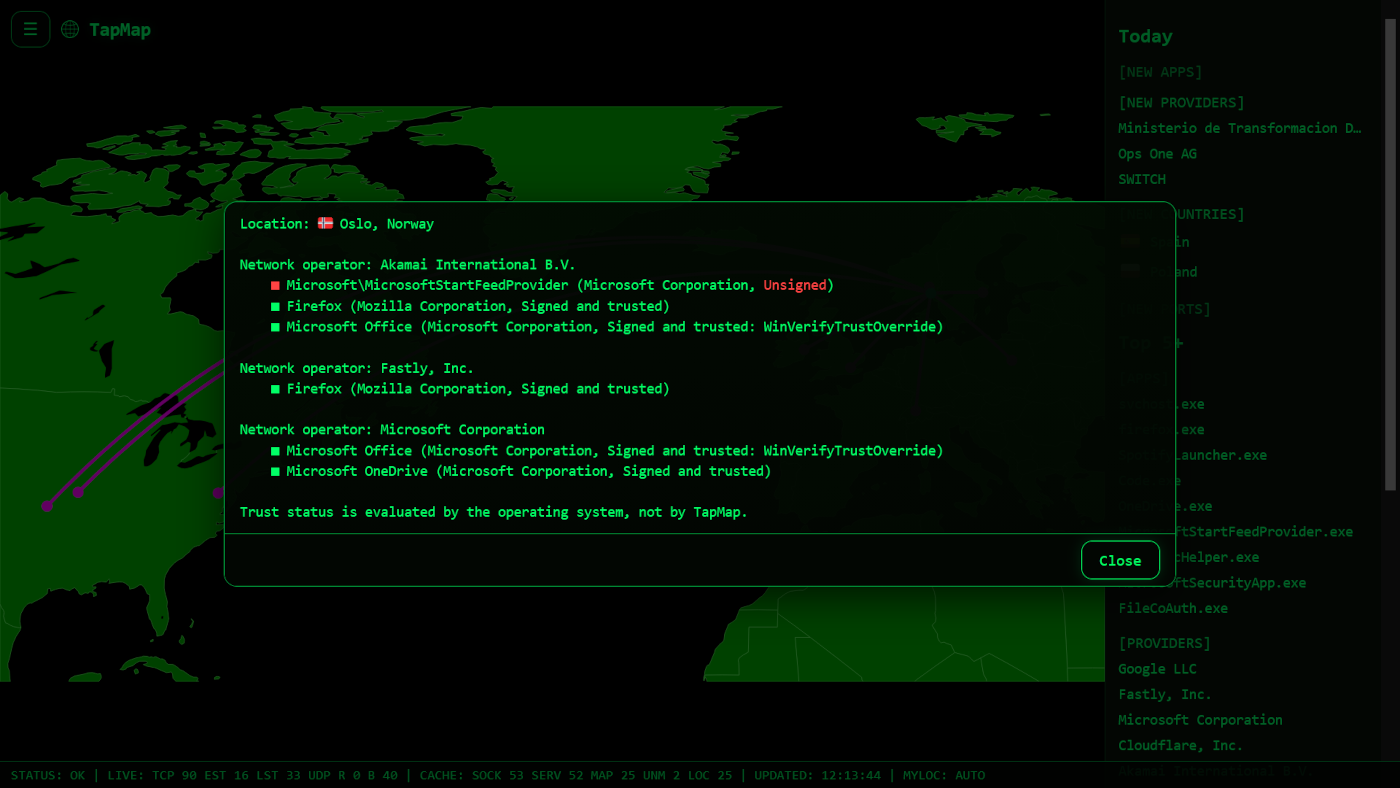
By default, Technical details are hidden. TapMap instead presents application information for general use, focusing on three questions:
- What is the application name?
- Who created it?
- Can it be verified?
Application verification
TapMap does not determine whether an application is safe or malicious.
Instead, it uses information available from the operating system to verify the application or package and shows the result as a colored indicator:
| 🟢 | Verified: Verification succeeded. |
| 🔴 | Failed: Verification failed. |
| 🟡 | Unknown or unavailable: Verification could not be completed. |
| ⚪ | Retrieving...: Verification is in progress. |
A failed verification does not necessarily mean that an application is malicious, and an unknown status does not mean that it is unsafe.
How applications are identified and verified differs between operating systems. The following sections describe how the application name, creator, and verification status are determined on Windows, macOS, and Linux, including the fallback mechanisms used when the preferred information is unavailable.
Technical details
Enable Technical details from the NETWORK menu or press T to display additional network and process information, including:
- IP addresses, ports, and protocols
- Process names and process IDs (PIDs)
- Executable paths
Executable paths are clickable and open the file location with the executable selected.
Windows
On Windows, TapMap uses psutil to identify the process and executable behind a network connection.
It then uses Windows VERSIONINFO, Microsoft Security Extensions, and WinVerifyTrust to determine the application name, creator, and verification status.
Application name
TapMap starts with the executable path reported by psutil and reads the executable's Windows VERSIONINFO resource.
             psutil
                │
        executable path
                │
                ▼
       Windows version.dll
                │
           VERSIONINFO
                │
           ProductName
                │
        useful product name?
           │          │
          yes         no
           │          │
           ▼          ▼
      ProductName   FileDescription
          NAME          available?
                    │          │
                   yes         no
                    │          │
                    ▼          ▼
             FileDescription  executable name
                   NAME           NAME
The preferred application name is ProductName from the executable's VERSIONINFO resource.
Generic Windows operating system product names, such as Microsoft Windows Operating System, are not used as the application name. In that case, or if ProductName is unavailable, TapMap uses FileDescription. If neither is available, the executable filename is used.
Creator
TapMap first uses CompanyName from the executable's Windows VERSIONINFO resource to identify the creator.
If CompanyName is unavailable, TapMap uses the publisher from the application's signing certificate.
        executable path
               │
               ▼
      Windows version.dll
               │
          VERSIONINFO
               │
          CompanyName
               │
          available?
          │          │
         yes         no
          │          │
          ▼          ▼
    CompanyName    Microsoft Security
      CREATOR        Extensions
                         │
                  signing certificate
                         │
                     Publisher
                         │
                     available?
                    │          │
                   yes         no
                    │          │
                    ▼          ▼
                Publisher    Unknown
                 CREATOR     CREATOR
CompanyName is preferred because it normally identifies the software vendor. If it is unavailable, the publisher from the signing certificate is used as a fallback.
Signature information is normally obtained through Microsoft Security Extensions. If it reports the executable as unsigned, TapMap also checks the file with Windows WinVerifyTrust. If Windows verifies the file, the publisher obtained through WinVerifyTrust is used as the creator fallback.
The publisher does not always identify the application creator directly. For example, some Windows components or drivers may be signed by Microsoft even when the software was created by another company.
Verification status
On Windows, TapMap uses Windows code-signing information to determine the color shown for an application.
TapMap first checks the executable using Microsoft.Security.Extensions.FileSignatureInfo. This supports both embedded Authenticode signatures and catalog signatures used by many Windows system files.
        executable path
               │
               ▼
 Microsoft.Security.Extensions
      FileSignatureInfo
               │
    GetFromFileStream()
               │
        result obtained?
          │          │
         no         yes
          │          │
          ▼          ▼
         🟡     SignatureState
                     │
       ┌─────────────┼─────────────┬─────────────┐
       │             │             │             │
SignedAndTrusted  Unsigned  SignedAndNotTrusted Invalid
       │             │             │             │
       ▼             ▼             ▼             ▼
      🟢       WinVerifyTrust      🔴            🔴
                (wintrust.dll)
                     │
                  trusted?
                  │      │
                 yes     no
                  │      │
                  ▼      ▼
                 🟢      🔴
| 🟢 | Windows verifies the executable as signed and trusted, either through Microsoft Security Extensions or through the WinVerifyTrust fallback. |
| 🔴 | A signature result was obtained, but verification failed. |
| 🟡 | TapMap could not obtain a signature result. |
WinVerifyTrust is used only as a fallback when Microsoft Security Extensions reports the executable as unsigned. This handles some files that Windows trusts but that Microsoft Security Extensions does not recognize as signed and trusted.
The color indicates the result of Windows code-signing verification. It does not indicate whether an application is safe or malicious.
macOS
On macOS, TapMap uses lsof and ps to identify the process and executable behind a network connection.
It then uses application bundle information and macOS code-signing tools to determine the application name, creator, and verification status.
Application name
TapMap locates the enclosing .app bundle for the executable and reads its Info.plist.
        executable path
               │
               ▼
        enclosing .app
               │
               ▼
           Info.plist
               │
      CFBundleDisplayName
               │
          available?
          │          │
         yes         no
          │          │
          ▼          ▼
 CFBundleDisplayName  CFBundleName
        NAME           available?
                       │       │
                      yes      no
                       │       │
                       ▼       ▼
                CFBundleName  executable name
                     NAME          NAME
The preferred application name is CFBundleDisplayName from the application's Info.plist.
If CFBundleDisplayName is unavailable, TapMap uses CFBundleName. If neither is available, or the executable is not contained in an application bundle, the executable filename is used.
Creator
For a signed Mach-O executable, TapMap uses the signing authority reported by codesign to identify the creator.
        executable path
               │
               ▼
          codesign -dvv
               │
        signing authority
               │
           Publisher
               │
          available?
          │          │
         yes         no
          │          │
          ▼          ▼
      Publisher    Unknown
       CREATOR     CREATOR
For Developer-signed applications, TapMap extracts the publisher name from the signing authority. Apple system software is identified as created by Apple.
If a publisher cannot be determined from the signature, the creator is shown as unknown.
The publisher does not necessarily identify the application creator directly. It identifies the entity represented by the code-signing information.
Verification status
TapMap first checks whether the executable is a Mach-O executable. Mach-O executables are inspected using codesign.
        executable path
               │
               ▼
            Mach-O?
          │          │
         no         yes
          │          │
          ▼          ▼
         🟡     codesign -dvv
                     │
               signature found?
                  │       │
                 no      yes
                  │       │
                  ▼       ▼
                 🔴   codesign --verify
                           │
                      valid?
                     │      │
                    no     yes
                     │      │
                     ▼      ▼
                    🔴   signing authority
                              │
                ┌─────────────┼─────────────┐
                │             │             │
          Apple system   App Store     Developer signed
                │             │             │
                ▼             ▼             ▼
               🟢            🟢            🟢
| 🟢 | The executable has a valid Apple system, App Store, or Developer code signature. |
| 🔴 | The executable is unsigned, ad hoc signed, or its signature verification failed. |
| 🟡 | Verification could not be completed or does not apply to the executable. |
For Developer-signed executables, TapMap also uses spctl to check whether macOS reports the software as notarized. A confirmed notarization is recorded as additional signature information and does not change the verification status.
The color indicates the result of code-signature verification. It does not indicate whether an application is safe or malicious.
Linux
On Linux, TapMap uses psutil to identify the process and executable behind a network connection. It then uses information from the Debian/Ubuntu package system to determine the application name, creator, and verification status.
Linux does not provide the same application verification model as Windows or macOS. The verification status is therefore based on package integrity and information from configured APT repositories, as described below.
Application name
TapMap starts with the executable path reported by psutil and tries to identify the installed package that owns it.
             psutil
                │
        executable path
                │
        os.path.realpath()
                │
                ▼
        dpkg -S <path>
                │
          package found?
           │          │
          no         yes
           │          │
           ▼          ▼
   executable name   dpkg -L <package>
         NAME                │
                             ▼
                      .desktop file(s)
                             │
                      [Desktop Entry]
                          Name=
                             │
                  exactly one visible
                    desktop name?
                      │          │
                     yes         no
                      │          │
                      ▼          ▼
                desktop Name   package name
                    NAME          NAME
The preferred application name is the Name= from one unambiguous, visible .desktop entry. If that cannot be determined, TapMap uses the package name. If the executable does not belong to an installed package, the executable filename is used.
Creator
TapMap uses package metadata to identify the creator when the executable belongs to an installed package.
        executable path
               │
       os.path.realpath()
               │
               ▼
       dpkg -S <path>
               │
         package found?
          │          │
         no         yes
          │          │
          ▼          ▼
       Unknown    dpkg-query -W
       CREATOR    -f=${Maintainer}
                       │
                       ▼
                   Maintainer
                       │
              Ubuntu distribution
                 maintainer?
                 │          │
                yes         no
                 │          │
                 ▼          ▼
              Unknown    Maintainer
              CREATOR     CREATOR
TapMap does not use generic Ubuntu package maintainers as the application creator, because they identify the distribution package maintainer rather than necessarily the creator of the application.
If no package owns the executable, the Maintainer field cannot be obtained, or the maintainer is a generic Ubuntu distribution maintainer, the creator is shown as Unknown.
Package integrity and APT repository
TapMap uses package integrity and information from configured APT repositories to determine the color shown for an application.
        executable path
               │
       os.path.realpath()
               │
               ▼
       dpkg -S <path>
               │
    package owns executable?
          │          │
         no         yes
          │          │
          ▼          ▼
         🟡      dpkg -V <package>
                     │
           Does dpkg -V verify
        the executable as unchanged?
                 │          │
                no         yes
                 │          │
                 ▼          ▼
                🔴     apt-cache policy
                         <package>
                             │
                  Is the installed version
                     available from a
                  configured APT repository?
                       │          │
                      no         yes
                       │          │
                       ▼          ▼
                      🟡          🟢
| 🟢 | The executable is unchanged from the installed package, and the installed package version is available from a configured APT repository. |
| 🔴 | The executable belongs to an installed package, but the executable has been modified or cannot be verified against the installed package. |
| 🟡 | TapMap cannot complete both checks. Either the executable does not belong to an installed package, or the installed package version is not available from a configured APT repository. |
The colors do not indicate whether an application is safe or malicious. For example, software installed outside the Debian/Ubuntu package system may be legitimate but will normally be shown in yellow.
Unknown applications
TapMap cannot always identify the application behind a network connection.
This can occur when:
- Process information is unavailable.
- The application is not installed through the operating system's package system.
- Publisher, package, bundle, or signature information is unavailable.
- The process has already exited before TapMap observes it.
An unknown application or yellow verification status should therefore not by itself be interpreted as suspicious.
Limitations
Application information depends on information made available by the operating system.
Each network connection is attributed to the operating system process holding it. If an application uses a separate helper, runtime, or interpreter for the connection, such as Python, Node.js, or Bun, TapMap may identify that process rather than the application that launched it.
TapMap does not maintain its own database of verified applications and does not decide whether software is safe or malicious.
The displayed verification status describes the result of operating system verification and should be considered together with the other application information shown by TapMap.